Showing posts with label Web Design. Show all posts

Tuesday, 4 March 2008

How to Change Header Width in Blogger

Want to change header width in Blogger? Changing header width looks like . Remember! Your Header Width must be the same or less width when the blog width. To change your blog header width you need to follow this steps:

1. Go to your Blogger Dashboard and click 'Layouts'.

2. After that click 'Edit HTML' and first of all - backup your template by clicking 'Download Full Template'.

3. Now you need to find CSS Style of your header, just find this line :

#header-wrapper {

(if you are using not default template, this parameter can have different name, for example : #header)

4. Now you must find or add width parameter under #header-wrapper line. For example it can look like this :

#header-wrapper {

width:660px; /* This parameter you must to change. */
margin:0 auto 10px;
border:1px solid $bordercolor;
}

5. After the changes, just save your template.

Also you can read:


Cheers.

Wednesday, 27 February 2008

SEO - Small Must To Do List

There are lot of Search Engine Optimization methods and its hard to do them all. This is a small list of things, what you need to do then starting new blog or web-site. Soon I will wright about every part of this list.

1. You must have robots.txt file.

2. You must submit your sitemap to search engines 

3. Off-load functionality code (javascript, css, etc.)

4. Use SEO friendly page titles.

5. Use proper meta tags.

6. Do not use frames.

7. You must have a website (blog) map page.

8. You must have a 404 Error handling page.

Friday, 15 February 2008

How to Integrate "Digg this" button to blogger blog

In this tutorial I will show you "how to integrate "digg this" button to your blogger blog and how to wrap "digg this" button around and inline beside Blogger post content. This will be good part of your blog design.

I think you know Digg, Why you need to install Digg button to your blog? This is the quote from the Digg:

The Digg This button is for website and blog publishers that want to encourage their audience to submit or digg their content on Digg. Join thousands of sites that have already added Digg This and seen their content exposed to the Digg community.

We've given our latest Digg This button a brain - it's smart enough to:

  • Encourage users to submit new content from your site to Digg. We'll detect if the content exists already and provide either a Submit or Digging interface
  • Display the real-time Digg count for content already on Digg
  • Support News, Video, or Podcast content.
  • Be backward compatible with the last version of our Digg This button

So, you can get some (or , maybe, big) traffic from Digg.

This is how it will look like:
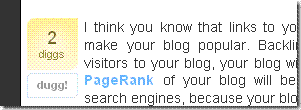
digg_this_button

It is hard to install this button to your blog and make it wrap around and inline beside post content, so, I will tell you how to do it:

1. Go to Blogger Dashboard.

2. Go to Layouts and click on Edit Html subtab of Template tab.

3. Backup your template to PC.

4. Then put a check in Expand Widgets Template box at top of Edit Template text box and scroll down to the blog posts widget body to this line :

<p><data:post.body/></p> or <data:post.body/>

5. Append the following lines of code into the template BEFORE the line of <data:post.body/> located above:

<div id='digg'><script type='text/javascript'>
digg_url = &#39;<data:post.url/>&#39;;
digg_title = &#39;<data:post.title/>&#39;;
digg_window = &#39;new&#39;;
</script>
<script src='
http://digg.com/tools/diggthis.js' type='text/javascript'/></div>

6. Now you need to create CSS style for Digg this button. Find this line:

]]></b:skin>

7. If you want to have digg button on the left side of post, append the following lines of code into the template BEFORE the line of ]]></b:skin> located above:

#digg {
float: left;
margin-right: 5px;
}

If you want to have digg button on the right side of post, append the following lines of code into the template BEFORE the line of ]]></b:skin> located above:

#digg {
float: right;
margin-left: 5px;
}

8. Save your template.

That's all =) Cheers

Wednesday, 13 February 2008

How to change sidebar color in blogger

Changing color of sidebar is one of the easiest thing in redesign of standard blogger template.
But if you don't know HTML it can be hard for you, so this is another web design tip for you.


It's really easy, follow this steps:

1. Go to Blogger Dashboard and choose your blog.

2. Go to 'Templates' (or 'Layouts') and click on 'Edit HTML'
Also save your template on your computer.

3. Next find sidebar CSS style, its look like this (if you are using standard templates) #sidebar-wrapper, but if you are using your own or one of the free templates from internet, CSS style can look different, but ( I think) it must contain word #sidebar.

4. Now you see that it have some parameters (width, float and bla bla bla), you need to add new parameter - background-color - it is easy, just add background-color: #CCCCCC; in new line, but before } . (#cccccc - it is the color number, you can change it to your own color)

5. Now you can save your changes.

Also read about 'How to change Sidebar width in blogger'

Cheers

Tuesday, 12 February 2008

How to Hide Navbar in Blogger

I think, when you are starting your blog, first thing you need to to is hide your Navbar. Why? Because I don't like it =).

It is possible just to hide Navbar, you can't delete it =(.


Follow this steps:

1. Go to Blogger dashboard.
2. Find your blog and click 'Layout' .
3. Go to 'Edit HTML'.
4. Find #header-wrapper line (you can click Ctrl+F on your keyboard and enter #header-wrapper, this is easy way to find this line=))
5. Now simply copy and paste the following piece of code directly above the #header-wrapper line:

#navbar-iframe {

height: 0px;
visibility: hidden;
display: none;

}


6. Click 'Save Template'.

Now you don't have this annoying Navbar in your blog =)

Cheers